Home / Guides / Automate ticket triage with GPT-4o: a production‑ready step‑by‑step guide
Automate ticket triage with GPT-4o: a production‑ready step‑by‑step guide
You can automate ticket triage with GPT‑4o by designing a structured prompt, calling the completions endpoint with low‑latency settings, parsing the JSON response, and connecting the result to your help‑desk (e.g., Zendesk) via a webhook or an integration platform such as Composio or n8n.
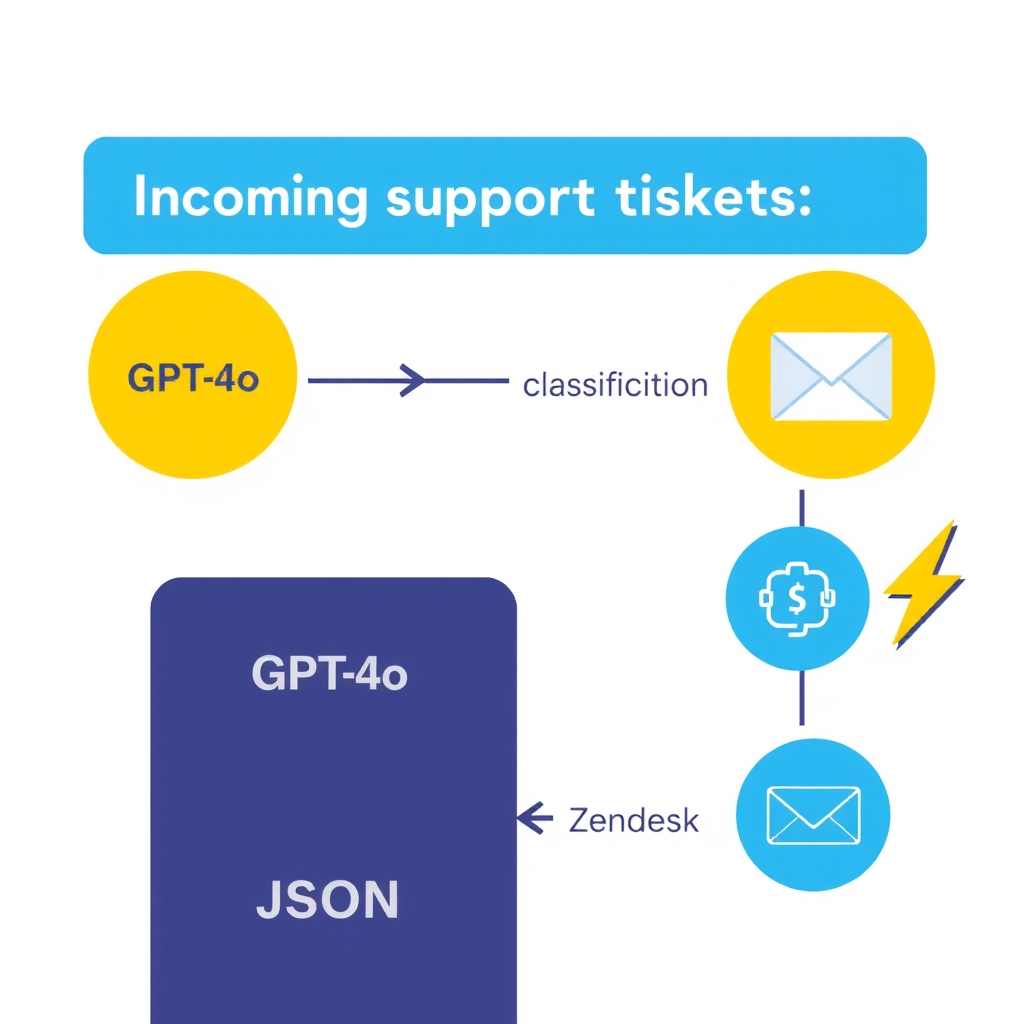
How do I design a prompt that reliably classifies tickets?
Prompt engineering basics (OpenAI guide [S1])
- Use the *system* role to set the assistant’s purpose, e.g., “You are a support‑ticket triage assistant.”
- Provide few‑shot examples that map a raw ticket to a JSON schema containing
category,urgency,sentimentand a shortsummary. - Ask the model to *always* return valid JSON—this enables deterministic parsing downstream.
- Keep the instruction concise; GPT‑4o handles up‑to‑128k tokens, but shorter prompts reduce latency.
Sample prompt (adapted from the n8n template [S2]):
You are an AI that triages incoming support tickets. Return a JSON object with the fields:
- category: one of [technical, sales, support, billing, general]
- urgency: low, medium, high
- sentiment: positive, neutral, negative
- summary: max 30 words
Ticket: {{ticket_text}}
The placeholder {{ticket_text}} will be replaced by the actual ticket body at runtime.
Why this works
- The model sees clear categories and output format, reducing hallucinations.
- Providing examples in the prompt improves consistency, as described in the “Prompt engineering” section of the OpenAI docs.
What API call settings give me low latency and predictable cost?
The completions endpoint (see [S1]) supports several knobs that affect speed and price.
- Model – Use
gpt-4ofor the best trade‑off between quality and cost. If you need a cheaper alternative for high‑volume triage,gpt-4o-miniis viable (the n8n template [S2] shows a $0.001 per request estimate). - Temperature – Set to
0for deterministic classification; higher values add randomness but aren’t needed for routing. - Top‑p – Keep at
1(default) when determinism is priority. - Max tokens – Limit to the size of your JSON response, e.g.,
max_tokens: 200. - Stream – For real‑time UI feedback you can enable streaming, but a simple request‑response pattern is sufficient for background triage.
- Latency – OpenAI’s infrastructure guarantees sub‑second response times for the
gpt-4ofamily when you stay under the 128k token limit.
cURL example (replace YOUR_KEY and TICKET_TEXT): bash curl https://api.openai.com/v1/chat/completions \ -H "Authorization: Bearer YOUR_KEY" \ -H "Content-Type: application/json" \ -d '{ "model": "gpt-4o", "messages": [{"role": "system", "content": "You are a support‑ticket triage assistant."}, {"role": "user", "content": "Ticket:\nTICKET_TEXT"}], "temperature": 0, "max_tokens": 200, "response_format": {"type": "json_object"} }'
The response_format field forces JSON output, a feature documented under *Structured output* in the OpenAI guide.
How can I connect the GPT‑4o output to Zendesk or another help‑desk?
Two practical integration paths are covered in the sources:
1. Using Composio (see [S3])
Composio provides an MCP gateway that lets ChatGPT call external APIs securely.
- Enable Developer Mode in ChatGPT settings.
- Add the MCP server URL
https://connect.composio.dev/mcpas a custom app. - Authorize the Zendesk connection inside Composio; the platform stores OAuth tokens and injects them when the assistant calls the Zendesk API.
- In your prompt, ask ChatGPT to *create* or *update* a ticket, e.g.,
create_ticket(category, urgency, summary). Composio translates that into a POST request tohttps://yourdomain.zendesk.com/api/v2/tickets.json.
2. Using n8n (see [S2])
The n8n workflow template shows a Google‑Sheets → OpenAI → Gmail/Slack pipeline that can be swapped for Zendesk.
- Replace the Gmail node with a Zendesk node (available in n8n’s node library).
- Map the JSON fields
category,urgency, andsummaryto Zendesk ticket fields. - Add a Zapier‑style webhook at the start of the flow to listen for new tickets from Zendesk or any other source.
- Deploy the workflow on n8n Cloud or a self‑hosted instance.
Both approaches keep API keys out of the prompt, satisfy OpenAI’s security best practices, and let you add retry and error‑handling logic as described in the *Errors and recovery* section of the Agents API docs [S1].
What security and cost‑optimization steps should I add before going live?
Security
- Store the OpenAI API key in a secret manager (AWS Secrets Manager, GCP Secret Manager, or the n8n/Composio built‑in secret store). Never hard‑code it.
- Use response_format to force JSON; this prevents the model from leaking prompts in the output.
- Enable sandboxing for any code‑execution nodes (Agents API sandbox security [S1]) if you run additional tooling.
- Limit the Composio MCP scope to *only* the Zendesk endpoints you need.
Cost‑control
- Set a max token limit as shown above.
- Track usage with OpenAI’s *usage* endpoint; you can build alerts when daily spend exceeds a threshold.
- For very high volume, experiment with
gpt-4o-mini(the n8n template [S2] reports $0.001 per request) and compare classification accuracy. - Batch tickets when possible: accumulate up to 10 tickets, send a single request with a list, and parse multiple JSON objects in the response. This reduces per‑ticket overhead.
Observability
- Log each request/response pair (excluding PII) to a centralized log store.
- Use OpenAI’s streaming option to capture partial outputs for real‑time monitoring.
- Integrate with the Agents API observability guide [S1] to capture latency metrics per call.
What to do if it does not work?
- Verify API credentials – confirm the OpenAI key and Zendesk/Composio OAuth tokens are present in the secret store and have not expired.
- Check prompt syntax – ensure the JSON schema in the prompt matches the
response_formatrequest field. A mismatch will cause a parsing error. - Inspect the raw response – enable streaming or add a debug node to log the full OpenAI payload; look for error messages under the
errorobject defined in the completions docs [S1]. - Validate JSON – use a JSON validator node (or the built‑in
JSON.parsefunction) before sending data to Zendesk. Invalid JSON will trigger a 400 error from the help‑desk API. - Review rate limits – OpenAI imposes per‑minute request caps. If you see
429 Too Many Requests, add exponential back‑off in your workflow. - Consult the OpenAI error‑recovery guide [S1] for specific error codes (e.g.,
invalid_request_error,authentication_error). - Test with a minimal ticket – send a simple “Hello” message through the pipeline to isolate whether the failure is in the model call or the downstream integration.
Menus and names can change as products update. If a step looks different, check the product's own help page.
Frequently asked questions
Can GPT‑4o handle multilingual tickets?
Yes. The model detects language automatically; you can add a language field to the JSON schema if you need explicit routing.
Do I need a paid OpenAI plan to use GPT‑4o?
Access to GPT‑4o requires a paid OpenAI subscription; the API is billed per token as described in the pricing docs.
How accurate is AI classification compared to manual triage?
In the Composio playbook [S3] a well‑tuned agent solved up to 83 % of repetitive tickets, but you should monitor confidence scores and route low‑confidence cases to humans.
Is there a way to fine‑tune GPT‑4o for my specific ticket types?
Fine‑tuning for GPT‑4o is not publicly available yet; rely on prompt engineering and few‑shot examples instead.